Photo Sharing Made Simple
No app required • Private gallery • QR code sharing • Photos and videos
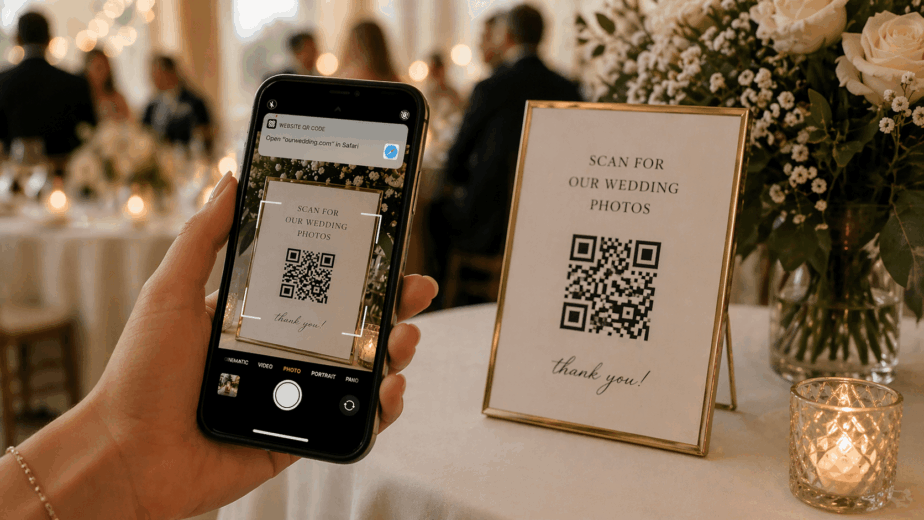
Create a private event gallery where guests scan your QR code and upload photos and videos from any phone — no app, no account, no chasing people after the event.
How It Works
The easiest way to collect guest photos and videos in one private event gallery — no apps, no hassle.
Set up your private event gallery in seconds. Add your event details and start collecting photos and videos instantly.
Guests scan your QR code or open your link to instantly access your event photo and video gallery.
No app required. Guests upload photos and videos directly from their phone in seconds.
Every photo and video appears instantly — perfect for live slideshows during your event.
Download, share, and revisit every memory in your private event gallery anytime.

Crafting Lasting Memories
Guests simply scan, upload, and enjoy. No apps, no logins, no confusion — just instant photo and video sharing from any phone.
Guests join instantly from their browser — no downloads, no accounts.
Scan your QR code and start uploading photos and videos in seconds.
iPhone, Android, tablet — it works anywhere, instantly.
Your event gallery is private — only guests with your link or QR code can access it.
Perfect For Every Occasion
Also perfect for graduations, family reunions, holiday parties & more.
Event Day
Display a live slideshow of guest photos on any screen during your event. Watch the gallery fill up in real time as guests upload from their phones.
Create Your Free Event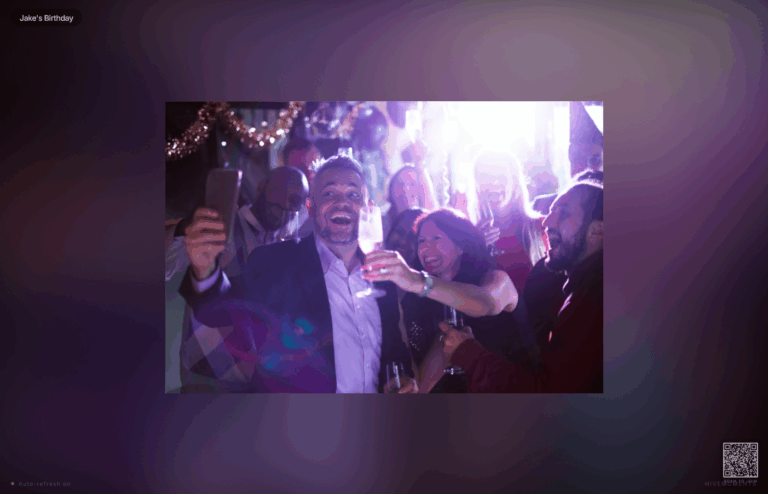
For Professionals
For photographers, planners and event teams: Pro Studio includes 5 concurrently active Events and up to 10 collaborators per Event. Pro Agency includes 10 active Events and unlimited collaborators. Choose monthly or annual billing, or contact our team about Enterprise.
Compare Business PlansWhat People Are Saying
“Our wedding guests loved it! I was worried people wouldn’t upload, but we had over 400 photos by the end of the night. No app download, no confusion — just pure magic.”
“I use HiveMoments for every corporate event I plan. Clients are always impressed when they see photos populating in real time on the screen. It’s become my secret weapon.”
“Set up in literally 2 minutes. My baby shower guests were uploading photos before I even finished explaining it. I have the most beautiful gallery of memories from that day.”
“As a photographer, I recommend HiveMoments to every client. They get candid guest photos I could never capture myself, and I get to focus on my work. Win-win.”
“My 70-year-old grandmother uploaded photos without any help. That’s when I knew this product was truly no-app, no-fuss. The whole family reunion is captured beautifully.”
“Switched from a wedding hashtag and never looked back. All photos in one private place, not scattered across Instagram. We still browse the gallery a year later.”
FAQ
No — guests never need to download anything. They simply scan your QR code or tap your link and upload photos and videos directly from their phone browser in seconds.
Yes, HiveMoments has a free plan that lets you create an event and collect guest photos and videos. Paid plans unlock additional storage, more events, and pro features for wedding planners and photographers.
Absolutely. Your event gallery is completely private. Only guests with your specific QR code or link can access and upload to it. No one else can find or view your gallery.
HiveMoments works for any event where you want to collect guest photos and videos — weddings, graduation parties, corporate events, birthday parties, baby showers, family reunions, and more.
Yes! HiveMoments includes a live slideshow feature. As guests upload photos and videos, they appear on the slideshow in real time — perfect for displaying on a screen or TV at your event.
Unlike a social media hashtag, HiveMoments keeps all your photos and videos in one private gallery — not scattered across Instagram and TikTok. You own and control everything, and guests don't need social media accounts to contribute.
Yes. You can download all photos and videos from your event gallery at any time. Your memories are yours to keep, share, or print.
For photographers, planners and event teams: Pro Studio includes 5 concurrently active Events and up to 10 collaborators per Event. Pro Agency includes 10 active Events and unlimited collaborators. Choose monthly or annual billing, or contact our team about Enterprise.
Create a private event gallery where guests scan your QR code and upload from any phone. Free to start — no app required.